Managing Your Collection
Your Collection
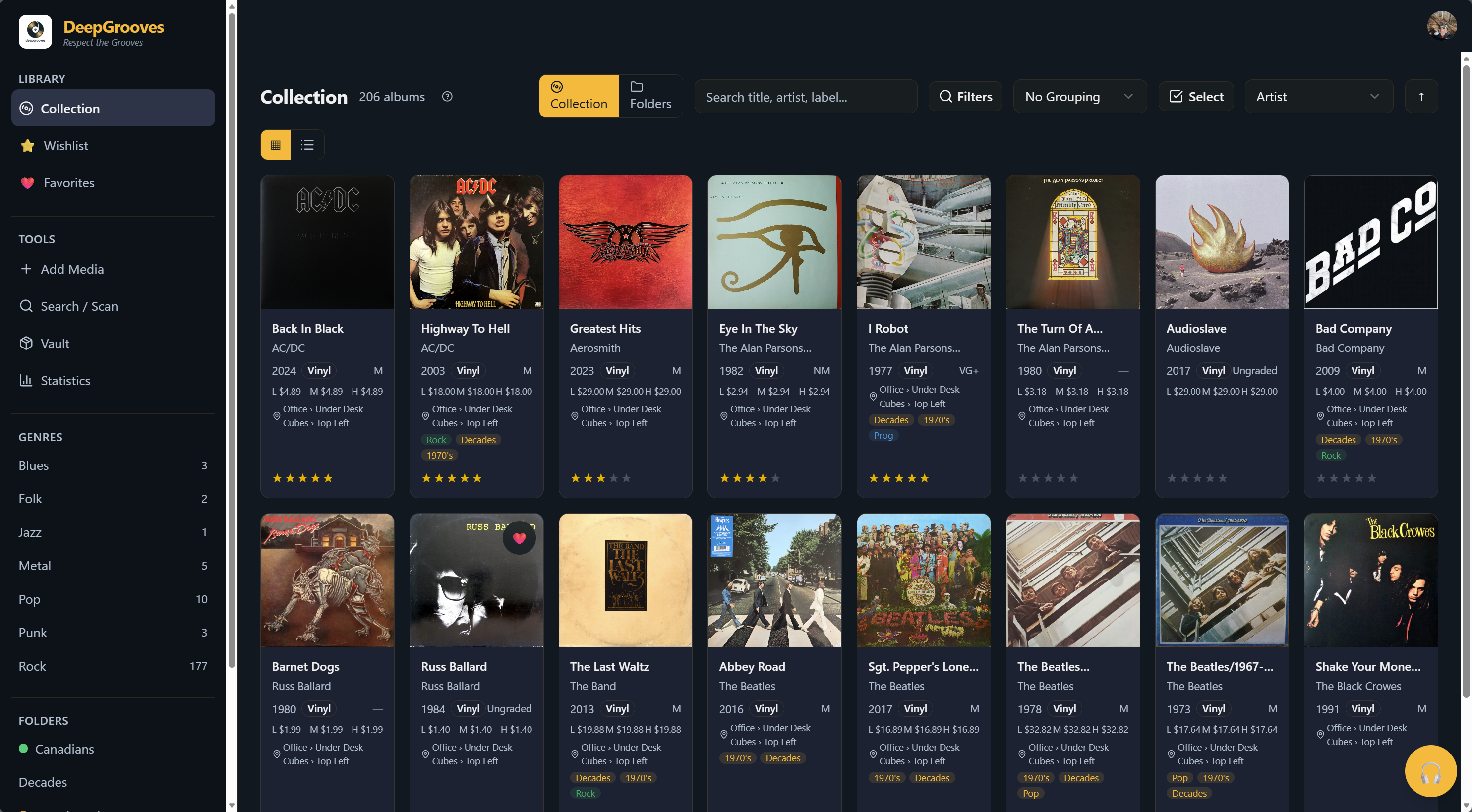
DeepGrooves organizes your physical music collection in one place. Browse, sort, filter, and group your records by artist, genre, folder, condition, rating, format, value, or any other detail you care about.
Library Views
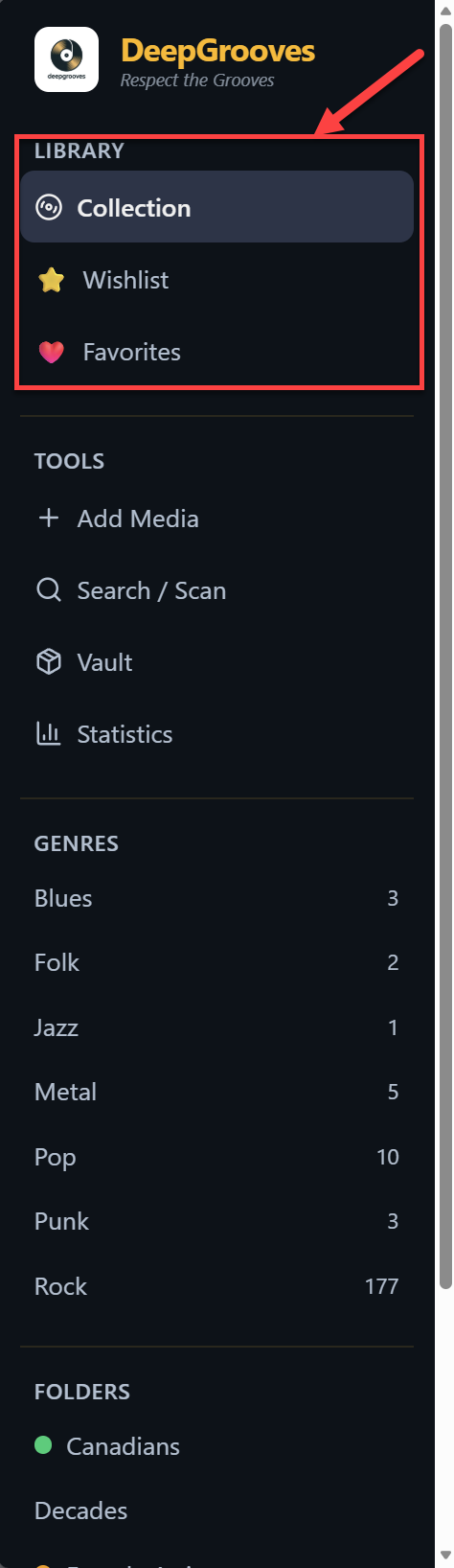
Switch between the main library views using the sidebar.
- Click Collection to see records you own.
- Click Wishlist to see records you want, are watching, or want to upgrade.
- Click Favorites to see owned records marked as favorites.
Counts In The Sidebar And Header
DeepGrooves uses a few different count types because real collections are messy.
| Count | What it means |
|---|---|
| Copies | Physical or digital items you own. If you own two copies of the same release, that is two copies. |
| Wants | Wishlist entries you are hunting for. |
| Favorites | Owned copies you marked as favorites. |
| Albums or release rows | Grouped browsing rows. Several owned copies can collapse into one album/release row. |
The sidebar labels units such as copies, wants, and favorites so the numbers are not floating totals. The main Collection, Wishlist, and Favorites headers stay quiet when you are looking at the full unfiltered view. When you search, pick a genre, open a folder, apply filters, or otherwise narrow the view, the header can show the current result count.
This is intentional. It keeps the page from showing two similar-looking numbers that are actually counting different things.
Quick Search
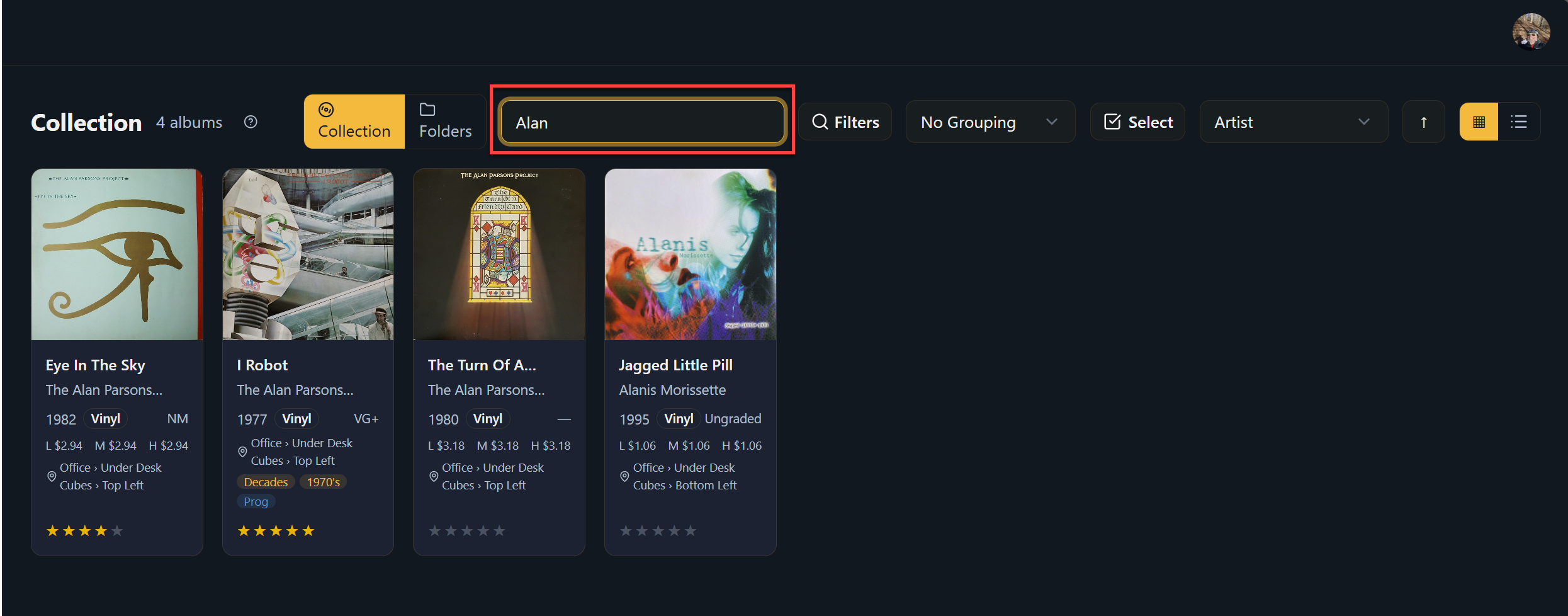
Use the search bar in the toolbar to filter albums by title, artist name, label, catalog number, format, country, year, notes, and other searchable metadata.
Search is meant to be forgiving. You do not always need to type the full title from the beginning. A memorable phrase from the title can still find a longer album title, and punctuation differences such as straight or curly apostrophes should not block a useful match.
- Click the search bar.
- Type your search terms.
- Results update as you type.
Search Troubleshooting
- No results - Try fewer words, a memorable title phrase, the artist name, the label, or the catalog number.
- Results are too broad - Add another title word, artist name, label, year, format, or catalog number.
- Results do not update - Clear active filters first.
Advanced Filters
Click Filters to open the advanced filter panel.
- Click Filters in the toolbar.
- Set your criteria.
- Click Apply.
- Active filters appear as badges.
- Click Clear All to reset.
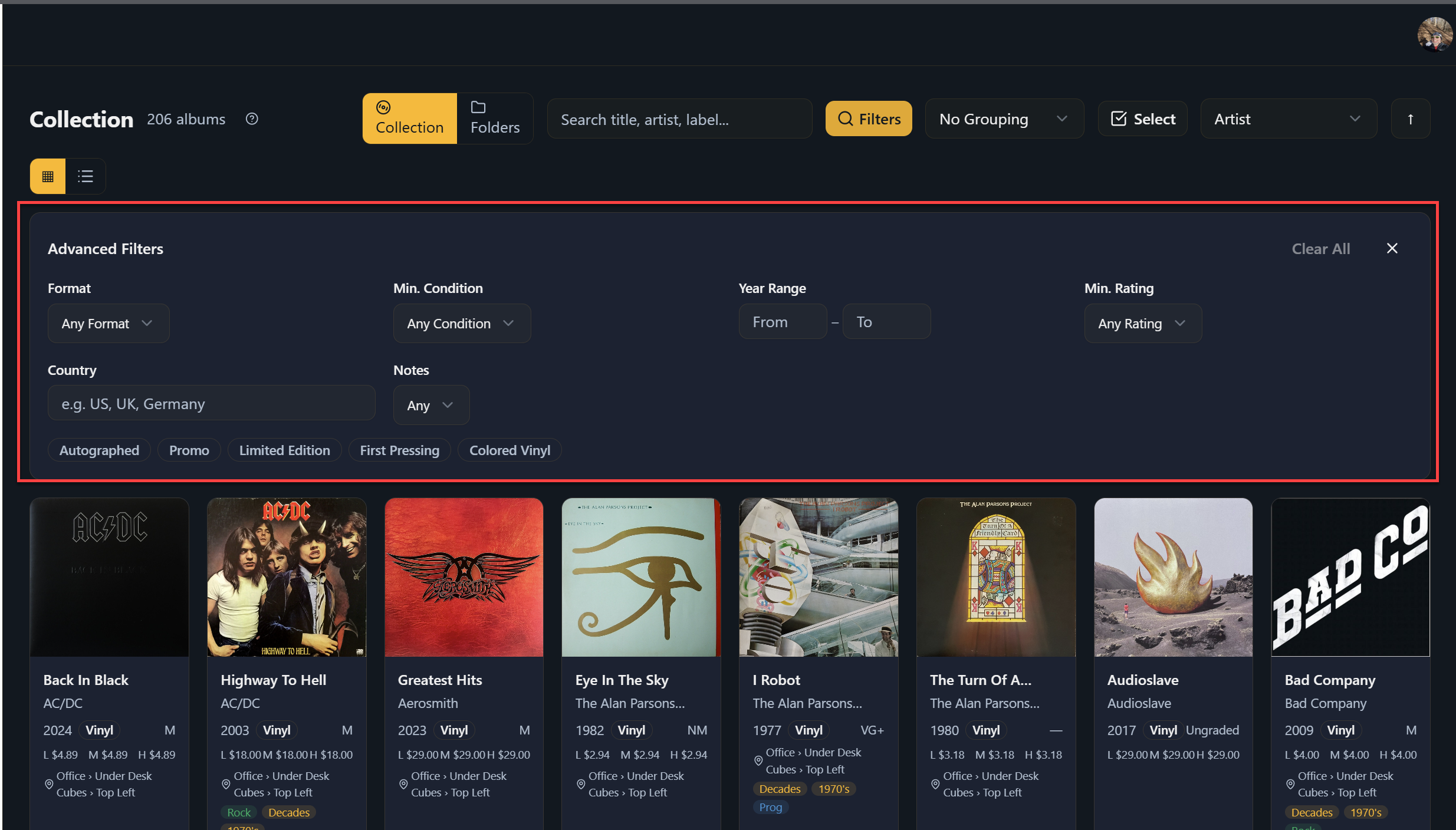
Available filters may include:
- media format,
- media or sleeve condition,
- year range,
- rating,
- country,
- notes,
- favorite, wishlist, or upgrade-watch state,
- folders and tags,
- collectibility flags such as autographed, promo, limited edition, first pressing, or colored vinyl.
Sorting
Click the Sort dropdown to change how albums are ordered.
| Sort Option | Description |
|---|---|
| Artist | Alphabetically by artist name |
| Title | Alphabetically by album title |
| Year | By release year |
| Date Added | Most recently added first |
| Rating | Highest rated first |
| Condition | Best condition first |
| Value | Highest value first |
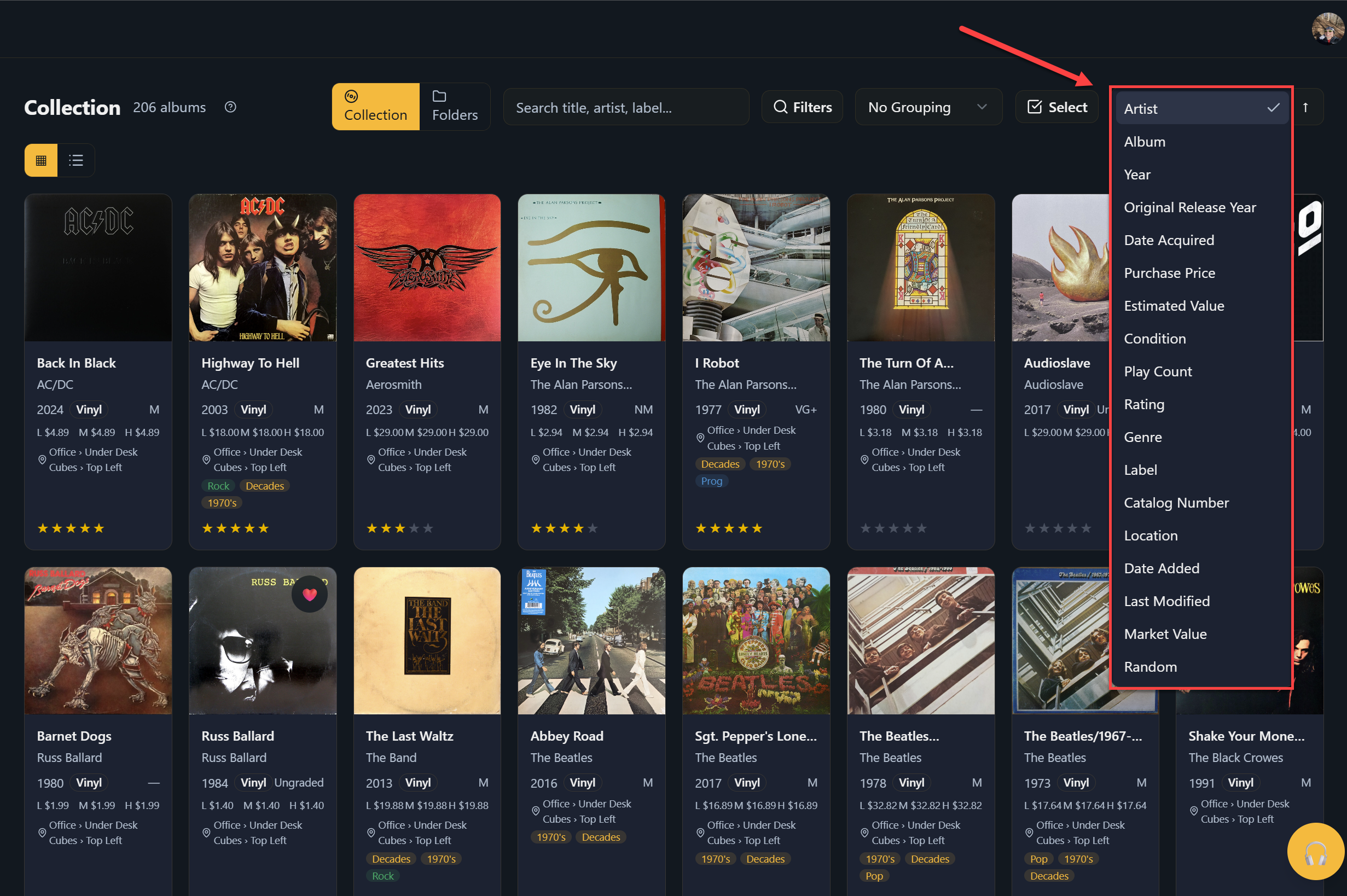
Use the direction control to toggle ascending or descending order.
Grouping
Use grouping when you want the library to feel less like one long grid.
| Group Option | Description |
|---|---|
| None | Single flat list |
| Decade | By release decade |
| Genre | By music genre |
| Artist | By artist name |
| Folder or saved view | By your personal organization where supported |
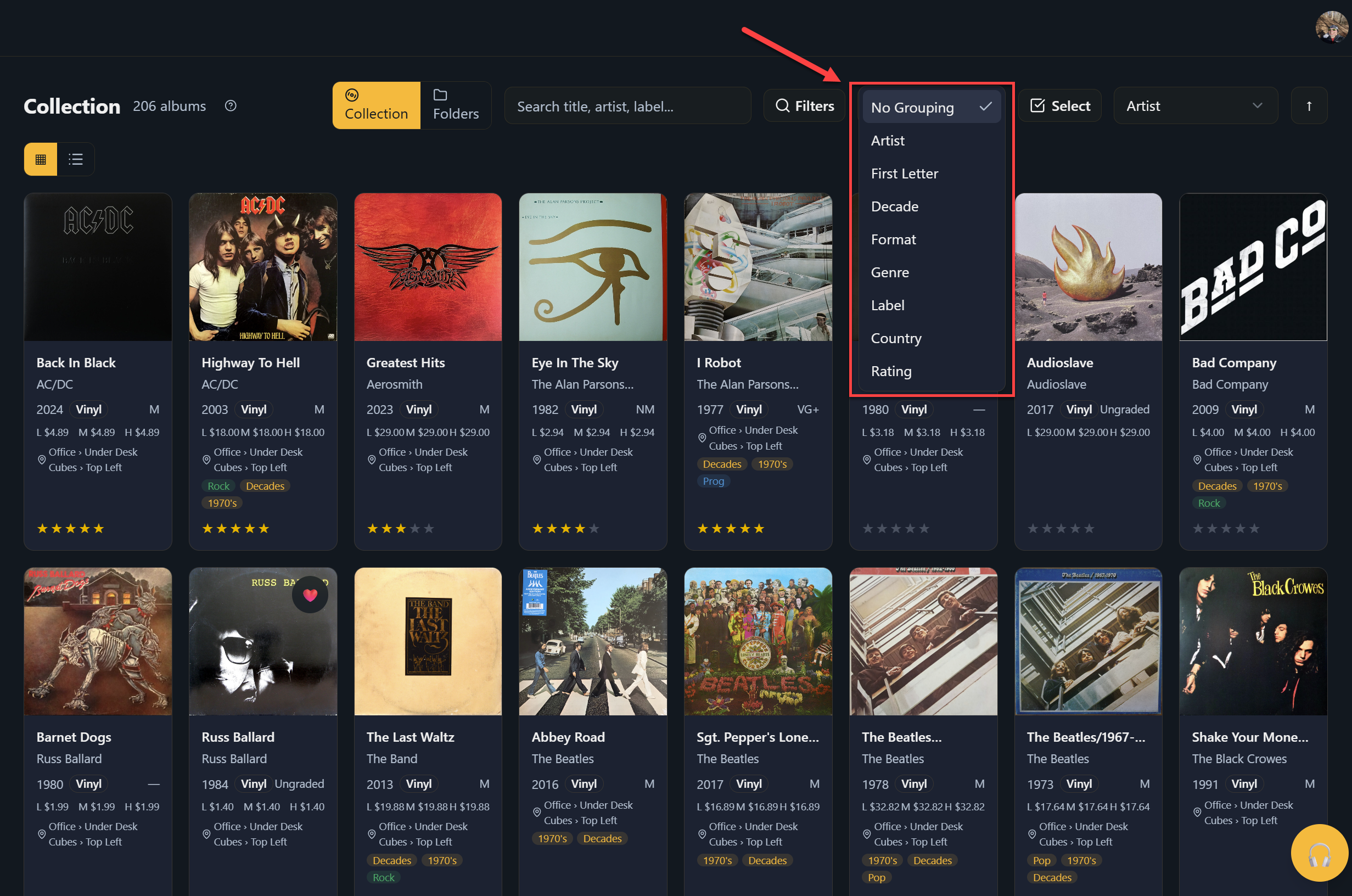
Each group header shows the count of rows in that group. In grouped views, a row may represent an album/release rather than every physical copy.
View Modes
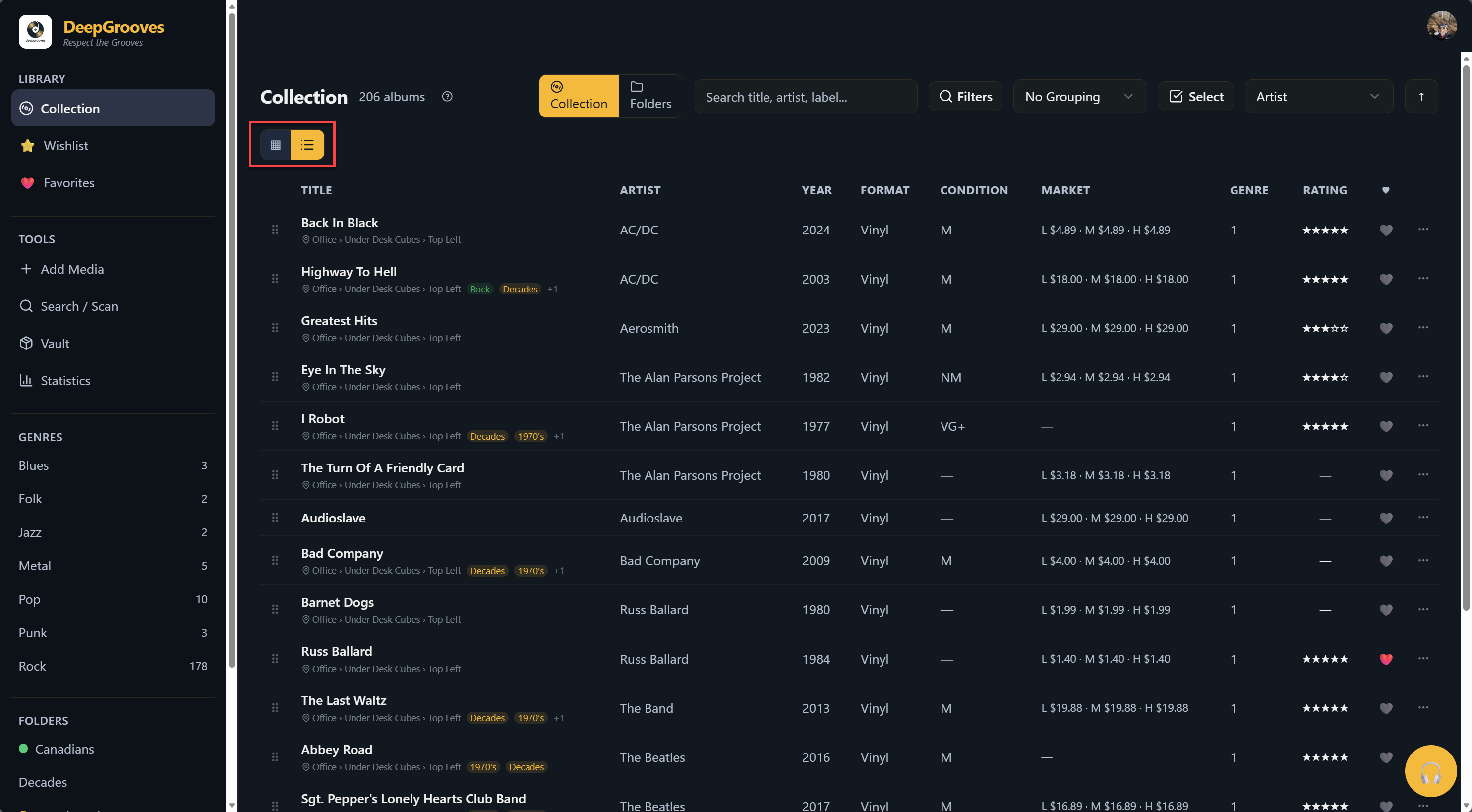
Toggle between display modes using the view buttons.
| View | Best For |
|---|---|
| Grid | Visual browsing by cover art |
| List | Scanning metadata quickly |
| Folders or grouped views | Browsing by personal organization or collection shape |
Selecting Albums
Click any album to open the album flyout. This shows details without losing your place in the current view.
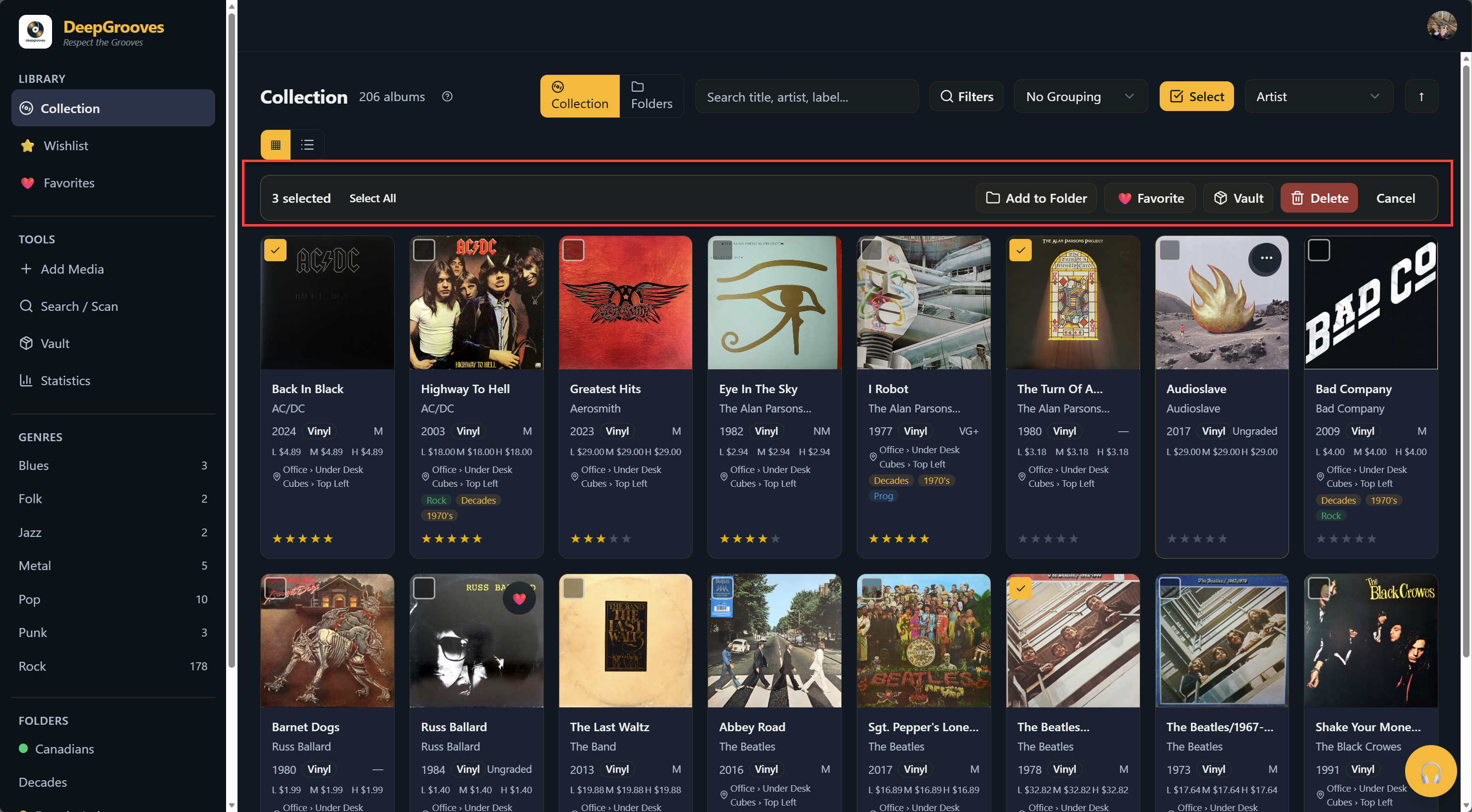
Use multi-select when you want to work on several records at once.
- Click the multi-select control when available.
- Click albums to select or deselect them.
- Use Select All to select all visible albums.
- Use Cancel or Esc to exit.
Bulk Actions
With albums selected, the toolbar shows bulk action buttons.
| Action | Description |
|---|---|
| Add to Folder | Assign selected albums to a folder |
| Favorite | Toggle favorite status for selected records |
| Delete | Remove selected records from your collection |
| Assign Location | Set Vault storage location for selected records where supported |
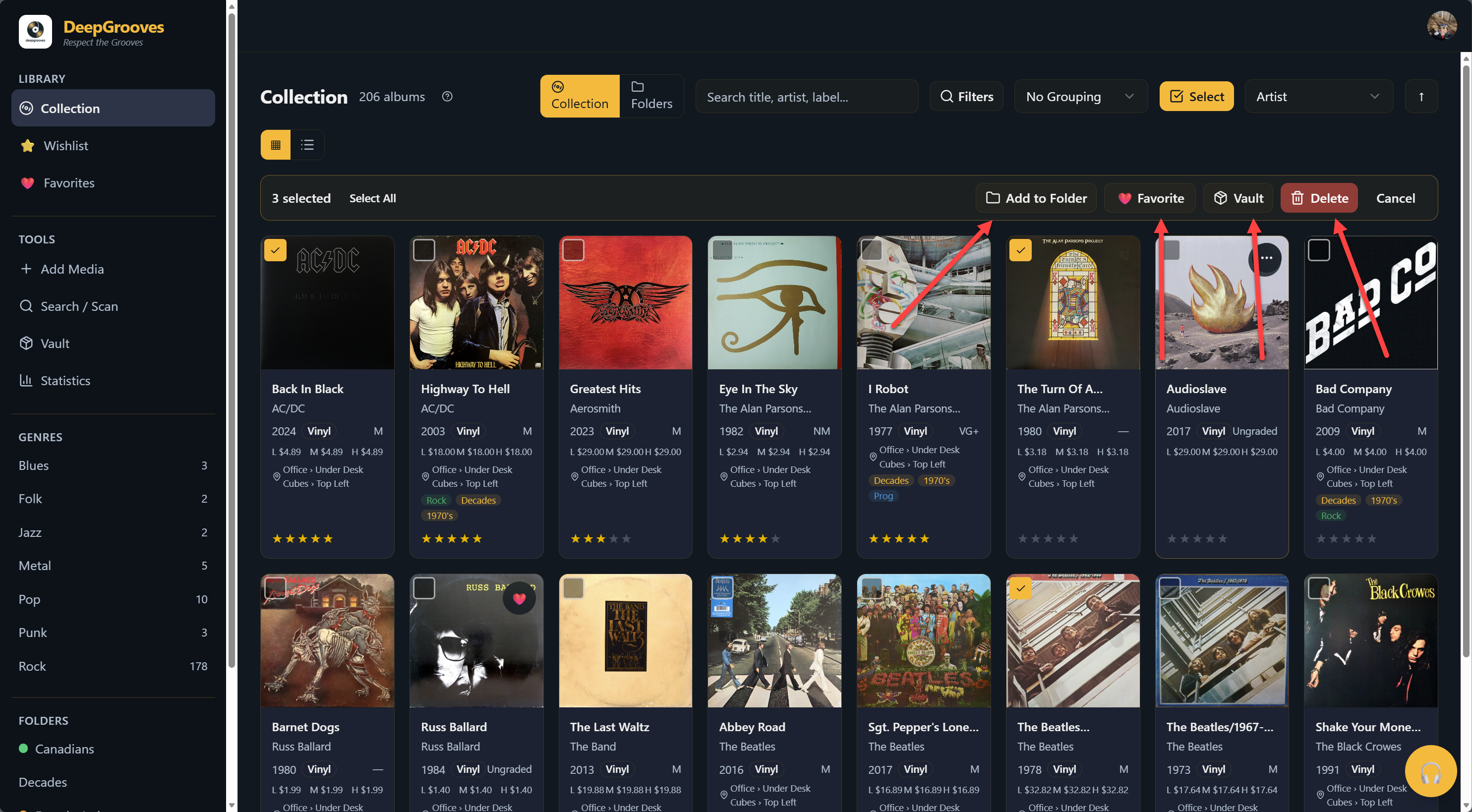
Bulk actions should apply only to the selected records. Read confirmation dialogs carefully, especially for delete actions.
Sidebar Navigation
The sidebar provides quick access to library scopes, tools, genres, folders, and pinned Smart Collections where available.
| Section | Purpose |
|---|---|
| Library | Collection, Wishlist, Favorites |
| Tools | Discover, Store Mode, Next, Smart Collections, Health, Vault, and Statistics |
| Genres | Filter by genre |
| Folders | Your custom folder hierarchy |
| Smart Collections | Saved dynamic views |
Click any genre, folder, or saved view to scope the collection. Filtered and scoped views can show a result count in the page header; the all-view header does not show a competing total.
Drag And Drop
Where supported, drag records from the collection grid to folders in the sidebar.
- Click and hold a record cover.
- Drag to a folder in the sidebar.
- Release to add the record to that folder.
If drag and drop is awkward on your device, use the album action menu or bulk folder action instead.
Related topics:
- adding-albums
- album-detail
- folders
- discogs-search
- bulk-operations
- vault