Album Details
Album Details
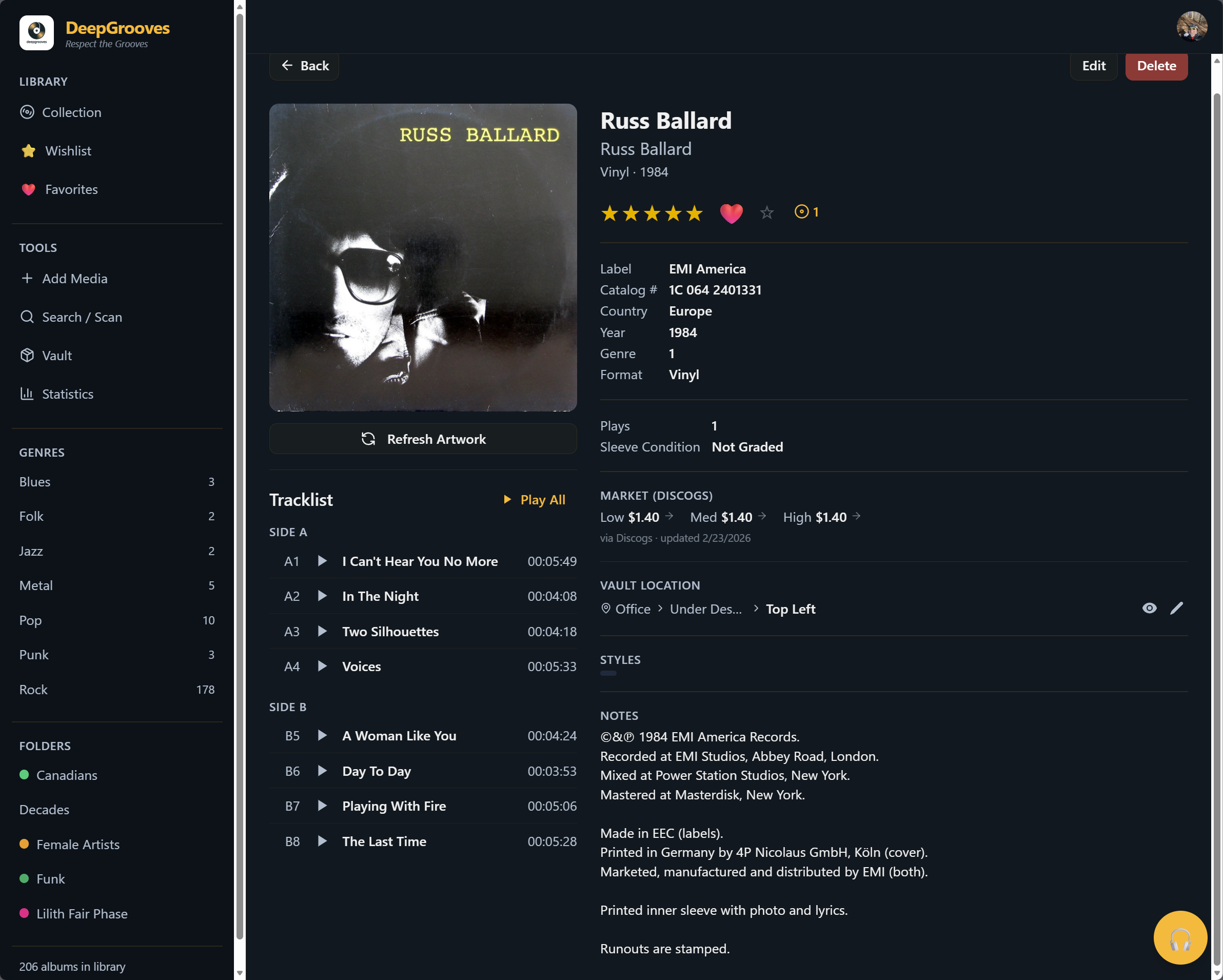
The album detail view shows everything about a specific record in your collection: artwork, album identity, pressing details, tracklist, copy details, listening history, and your personal notes.
Flyout vs Full Page
Quick View Flyout
Click any album in your collection to open the flyout panel. The flyout is for quick review without losing your place in Collection, Wishlist, Favorites, Artist Browser, or a scoped view.
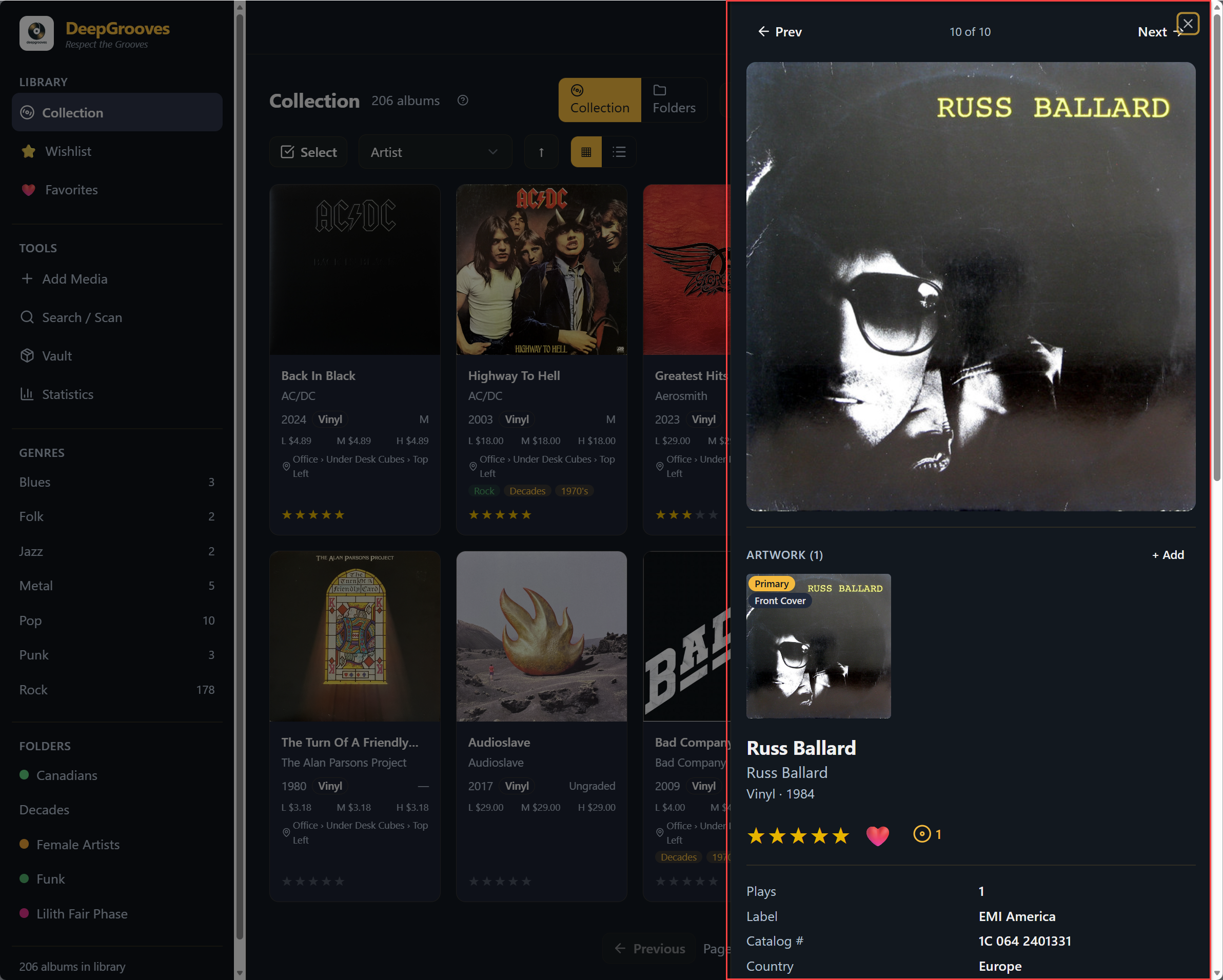
The flyout can show:
- cover artwork,
- title and artist,
- release year, format, label, country, and catalog number when available,
- rating stars,
- favorite state,
- wishlist or upgrade-watch context,
- spin button and play count,
- folder or Vault context,
- and the most important actions for that record.
Full Page View
Open the full detail page when you want to review the whole record, edit copy details, inspect runouts, compare pressing information, or use actions that need more room.
The full page can include:
- larger artwork display,
- complete album and release metadata,
- full tracklist with previews where available,
- condition, rating, value, and purchase details,
- notes, folders, tags, and Vault location,
- runout or matrix information,
- edit and delete options,
- and artwork management where supported.
Album Identity vs Your Copy
Album identity and copy details are related, but they are not the same.
| Detail Type | Examples |
|---|---|
| Album/release identity | Title, artist, label, country, year, format, catalog number, barcode, tracklist |
| Your copy details | Media condition, sleeve condition, price paid, purchase source, notes, rating, favorite state, folders, Vault location, runouts |
If you own two physical copies of the same release, each copy can have different condition, notes, location, purchase details, and runouts. This is why Collection counts may refer to copies/items while grouped views may show fewer album or release rows.
Rating Your Album
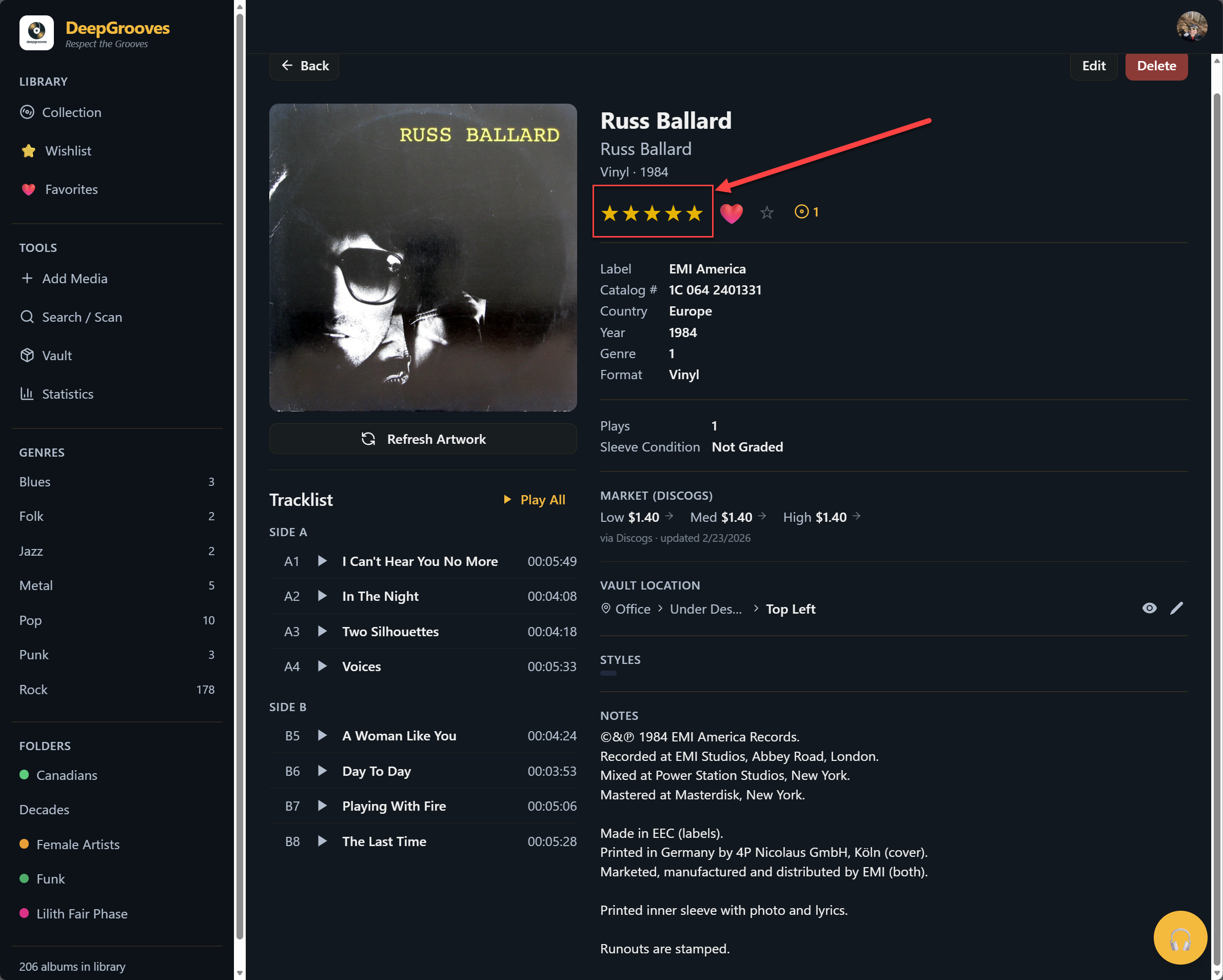
Click the star rating to rate an album from 1 to 5 stars.
- Click a star to set that rating.
- Click the same star again to clear the rating.
- Use ratings to filter, sort, and remember personal favorites.
Favorites, Wishlist, And Upgrade Watch
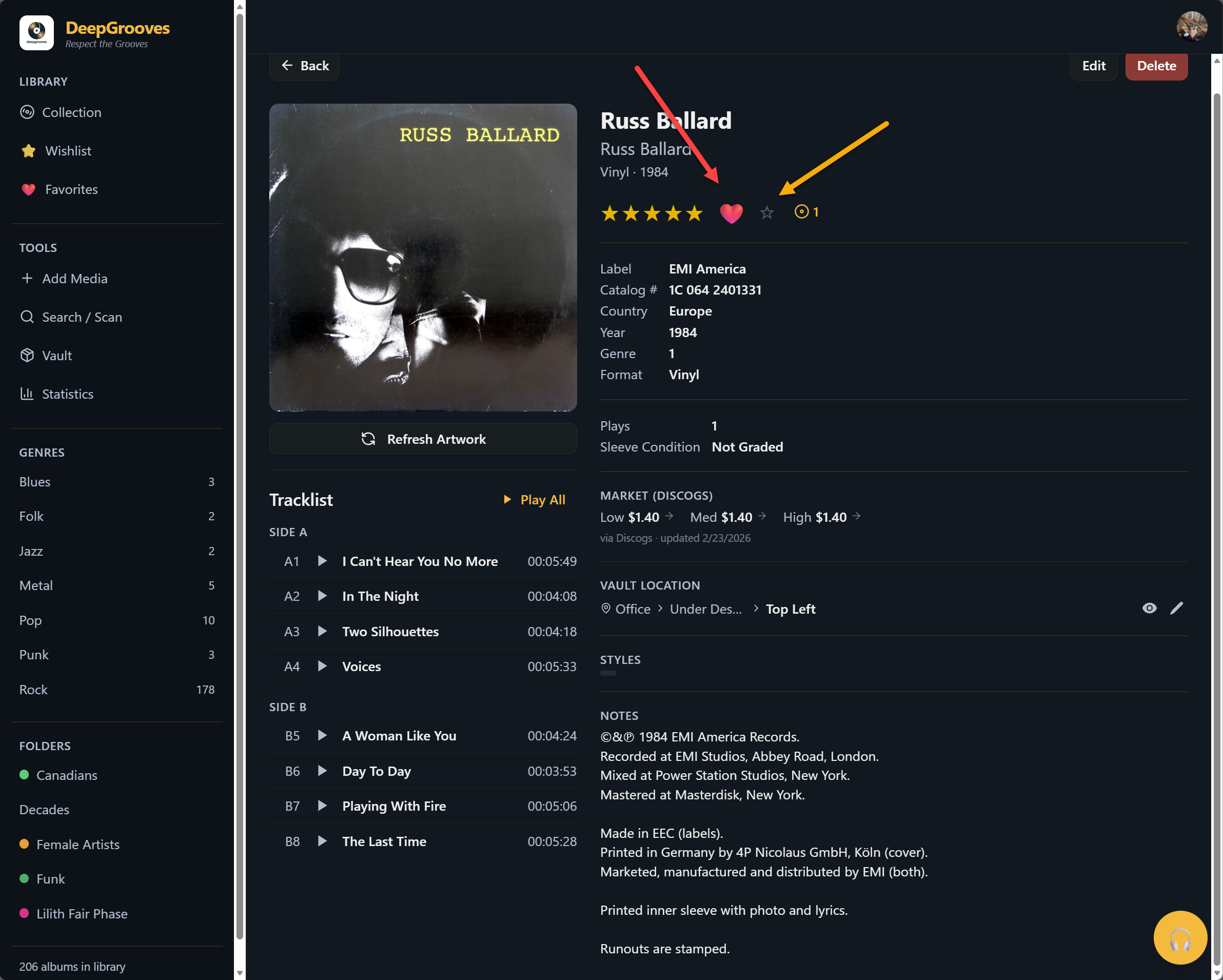
Click the heart action to mark an owned album as a favorite. Favorites appear in the Favorites library view.
Use Wishlist when you want a record you do not own yet. Use Upgrade Watch when you own a copy but want to hunt for a better one. An owned album can be a favorite and can also have an upgrade-watch target.
Recording Spins
Click the Spin button each time you play a record.
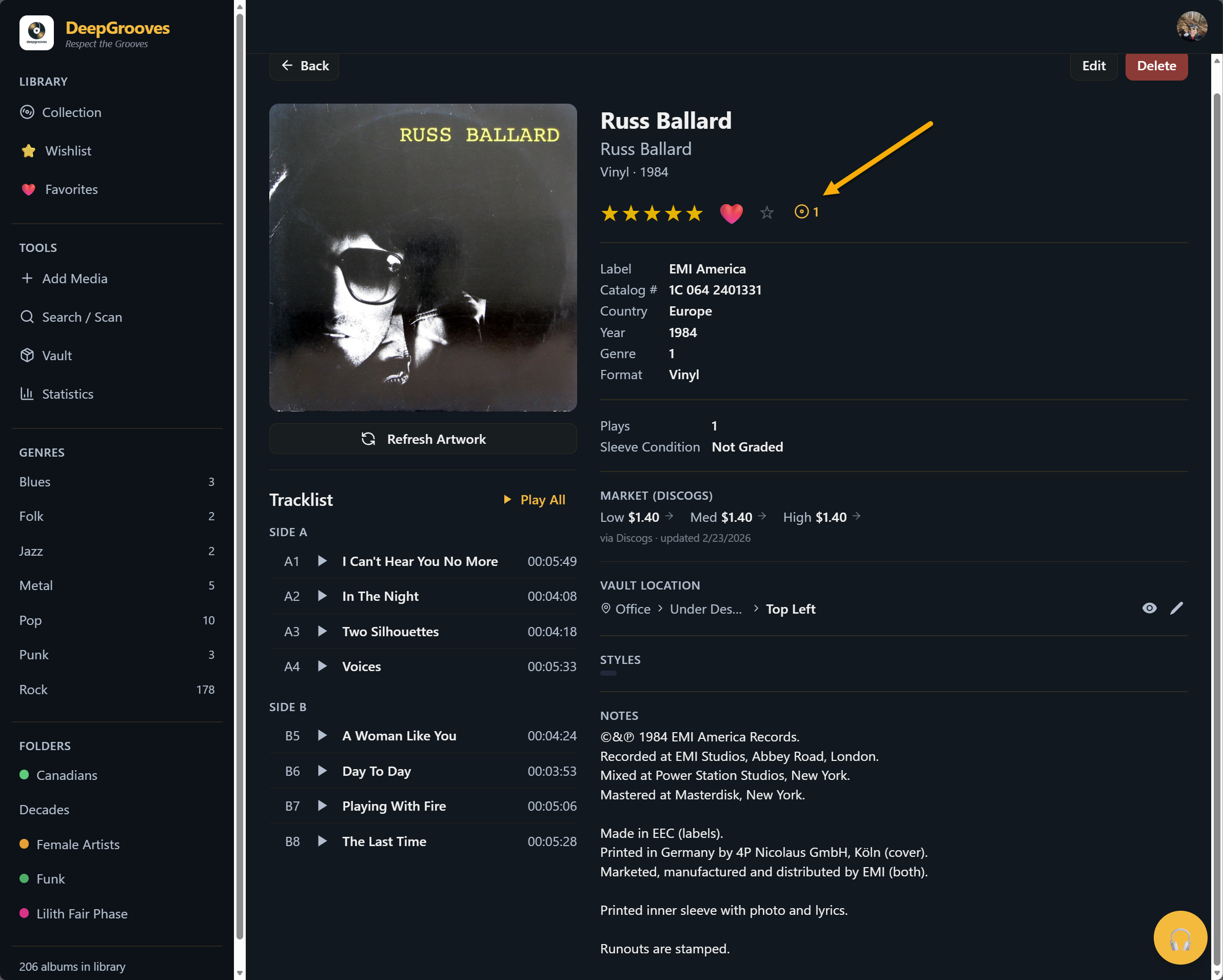
Spin history can help DeepGrooves track:
- total play count,
- when you last played the record,
- listening habits over time,
- and listening-journal context where available.
Folder Organization
Albums can belong to one or more folders for custom organization.
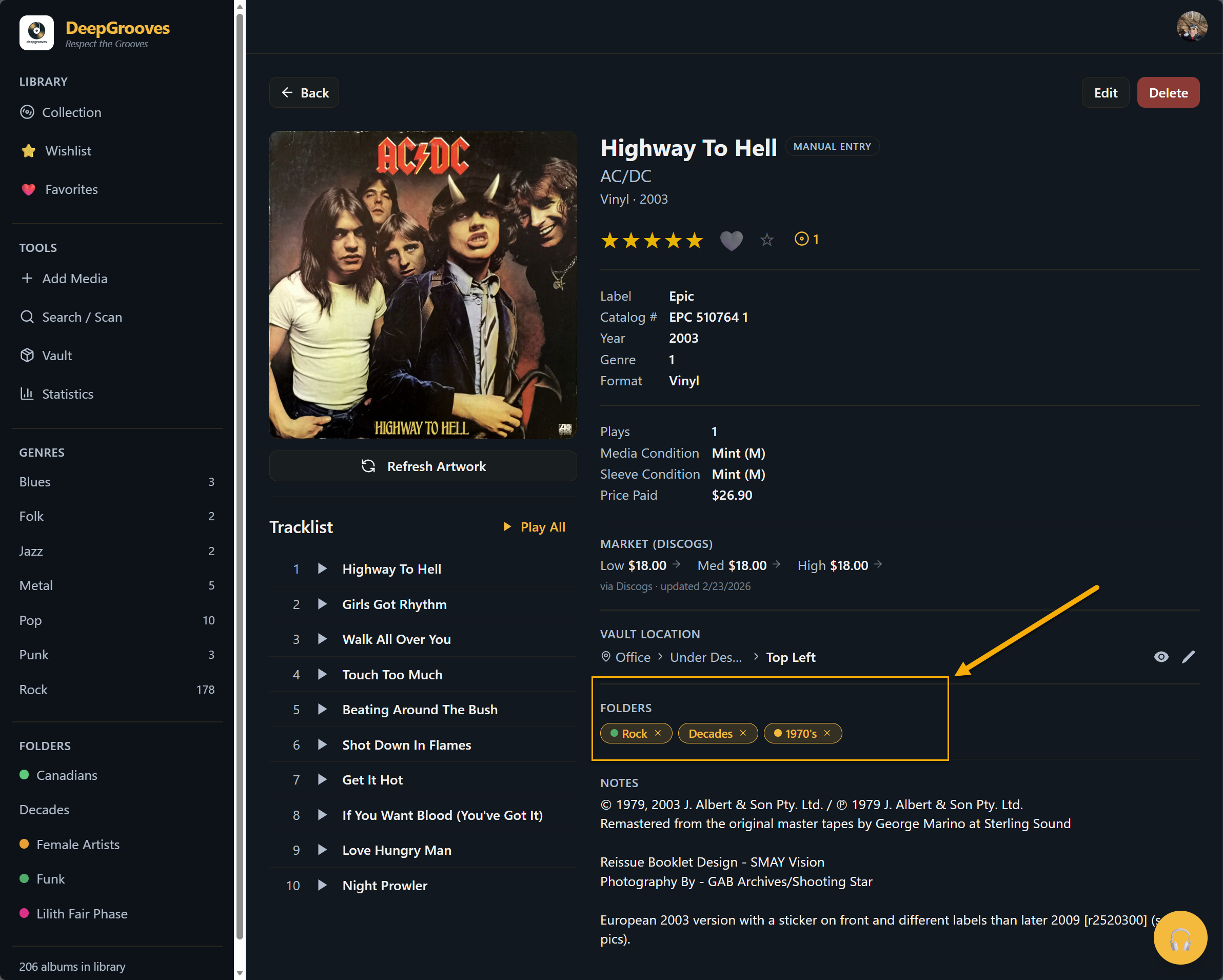
Use folders for intentional groups such as "To Clean", "Sell Stack", "Dad's Records", or "Sunday Morning". A folder is personal organization; it does not change the album identity.
Vault Location
If you assigned a physical storage location, it appears as a breadcrumb showing the full path, such as Room > Rack > Bin.
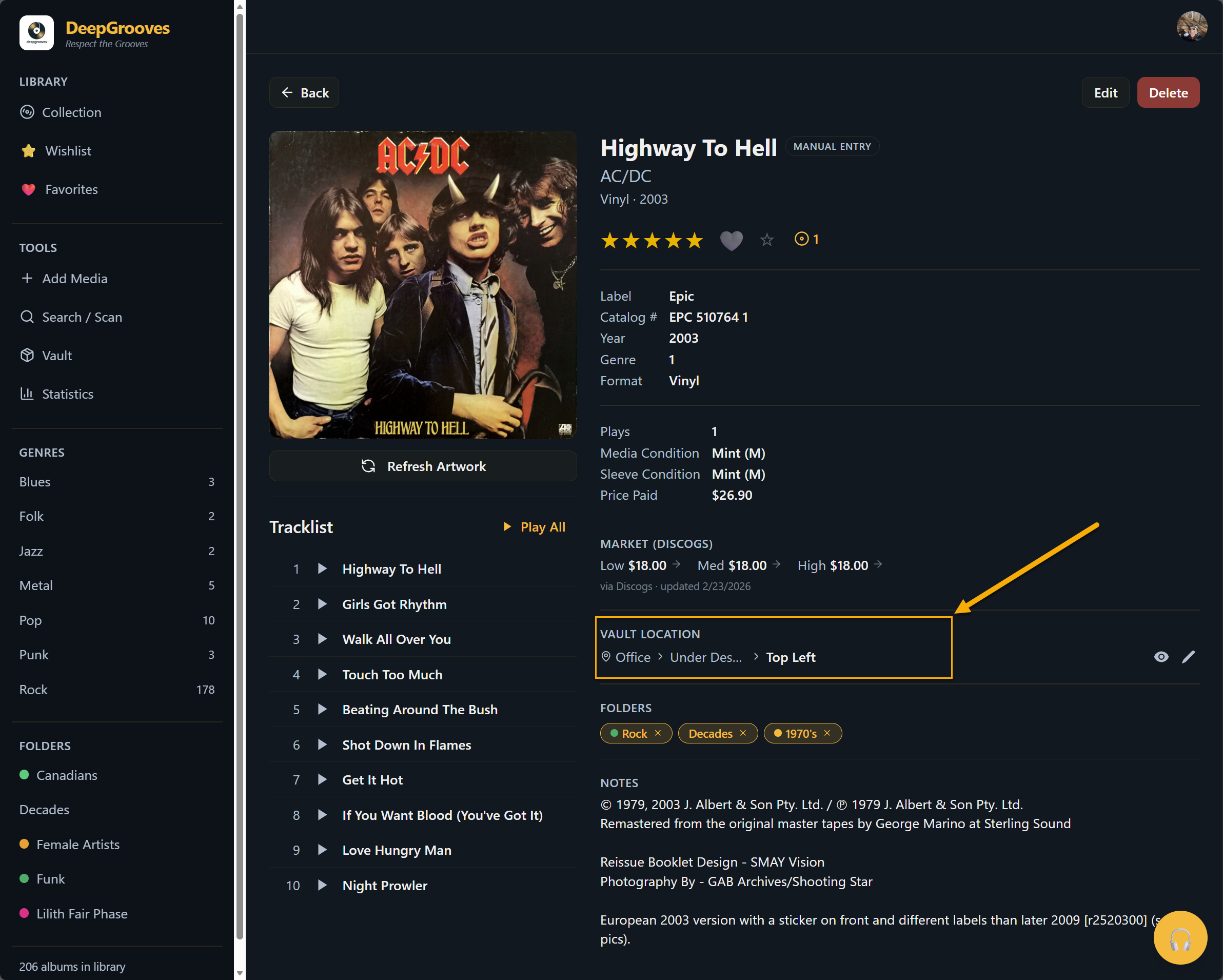
Click the breadcrumb when you want to navigate to that Vault location.
Tracklist And Previews
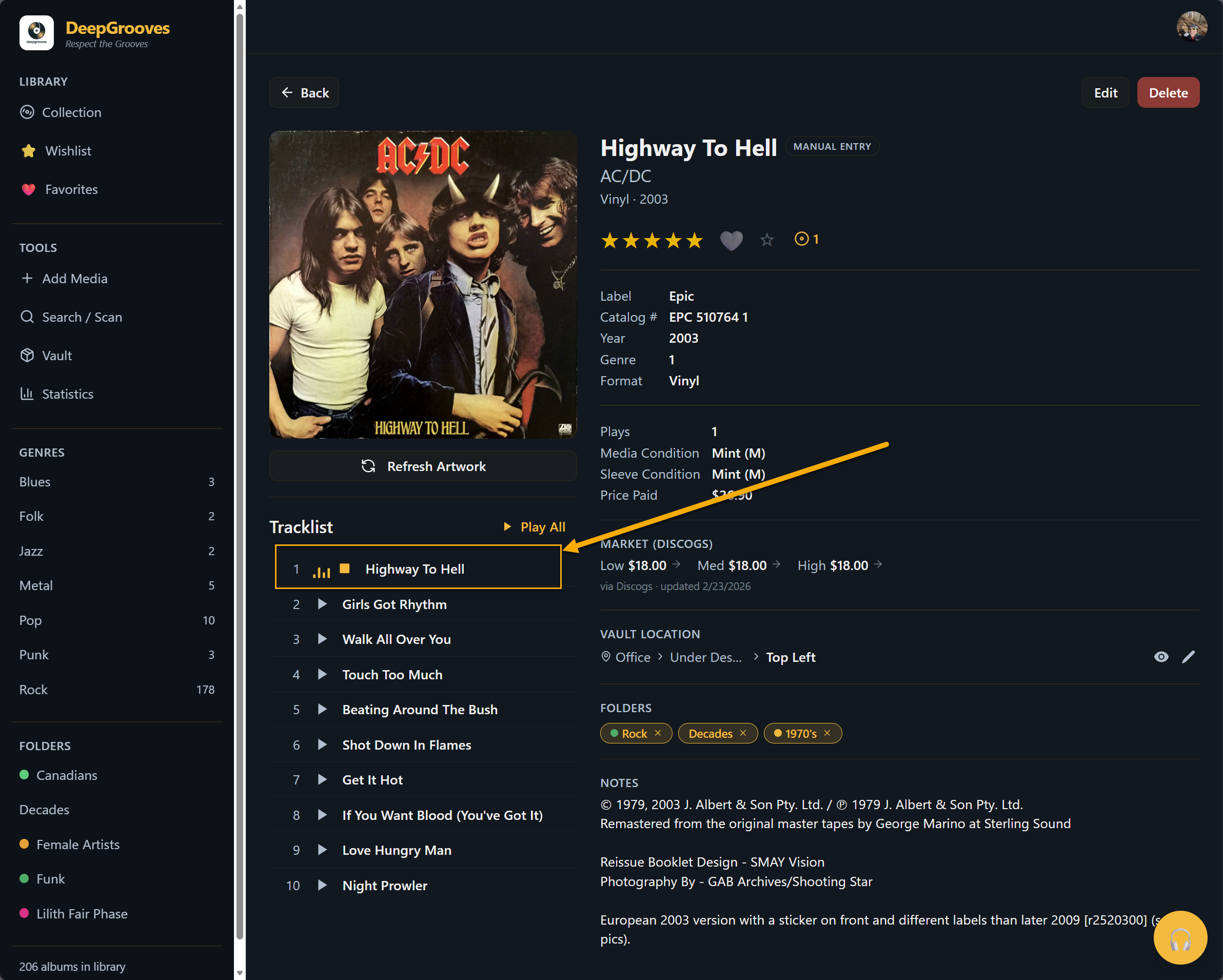
The tracklist displays tracks by side or sequence where that data is available.
Each track can show:
- position number,
- track title,
- duration,
- side or disc grouping,
- and a preview action when one is available.
If an audio preview is available, click Play to start it. Click Stop or wait for it to end. Only one preview plays at a time.
Artwork
If album artwork is missing or incorrect, use the available artwork action to refresh or review artwork from DeepGrooves catalog sources where supported.
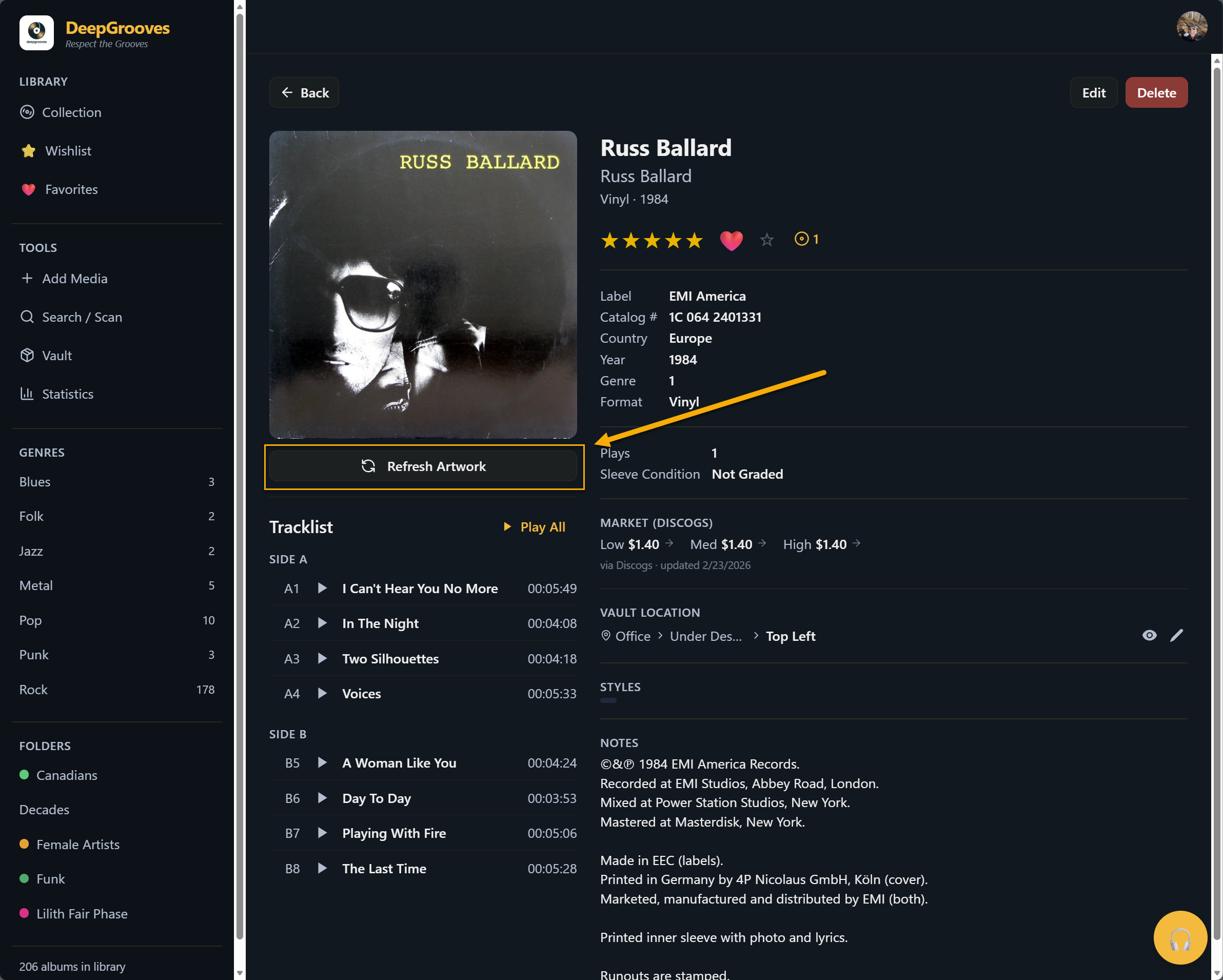
Some records may not have usable artwork yet, and remote artwork can occasionally fail or time out. DeepGrooves should retry where supported, then show a clean fallback instead of a broken image. Manual records may require adding or correcting artwork through the edit page.
Editing Album Details
Click Edit to open the album edit page. See Album Editing for details on what you can change.
Deleting An Album
Click Delete to remove an album copy from your collection.
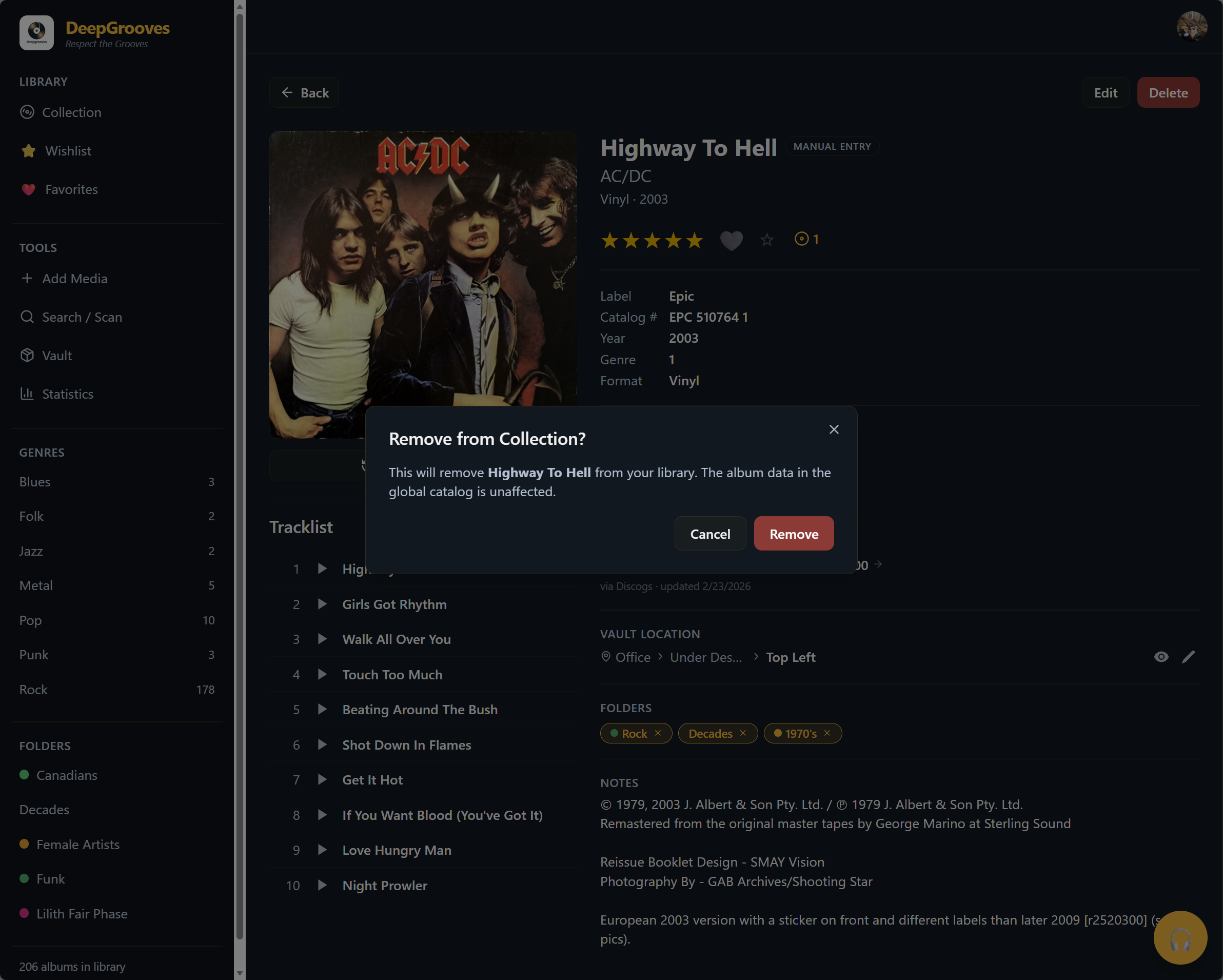
A confirmation dialog appears. Click Delete again to confirm, or Cancel to keep the album.
Warning: Deletion is permanent. The album copy and its personal data, such as ratings, notes, spin history, runouts, and storage details, will be removed.
Related topics:
- album-editing
- grading-guide
- audio-previews
- value-insurance
- tags
- folders
- vault